Need help canceling your GTA+ subscription? Yeah — you’re not alone in your struggles, mate. Rockstar doesn’t have a universal cancellation method for its recurring subscription service, so it can be a real pain to figure out how to do it.
This also means the cancellation process differs across PlayStation 5, Xbox Series X|S, and PC. But don’t worry because this guide will explain how to cancel GTA+ on every supported platform and what happens to your rewards once your membership ends.
How to cancel GTA+
To cancel GTA+, you need to turn off automatic renewal on the original platform or account you used to purchase it.
For example, PlayStation 5 players can manage GTA+ directly through their PlayStation account, while Xbox subscriptions are handled through Microsoft. PC players need to cancel through Rockstar Games, Steam, or another storefront, depending on where they originally subscribed.
Once you cancel GTA+, it should remain active until your next scheduled billing date. You won’t be charged again unless you resubscribe or turn recurring billing back on. In the next sections, I’ll walk you through step-by-step instructions on how to cancel GTA+ for every platform.
Image credit: Rockstar Games
How to cancel GTA+ on PlayStation 5
You can cancel GTA+ directly from your Settings menu on PlayStation 5:
Open the Settings menu.
Go to Users and Accounts.
Select Account.
Choose Payment and Subscriptions.
Open Subscriptions.
Find GTA+ in the list.
Select Cancel Subscription.
You can also manage your GTA+ subscription through your PlayStation account online or via the PlayStation App if you don’t have access to your console.
Importantly, when you cancel the subscription, you’ll stop any subsequent payments rather than immediately removing GTA+. As a result, your membership should continue working until the end of the billing period you’ve already paid for. You won’t be charged after that unless you resubscribe.
How to cancel GTA+ on Xbox Series X|S
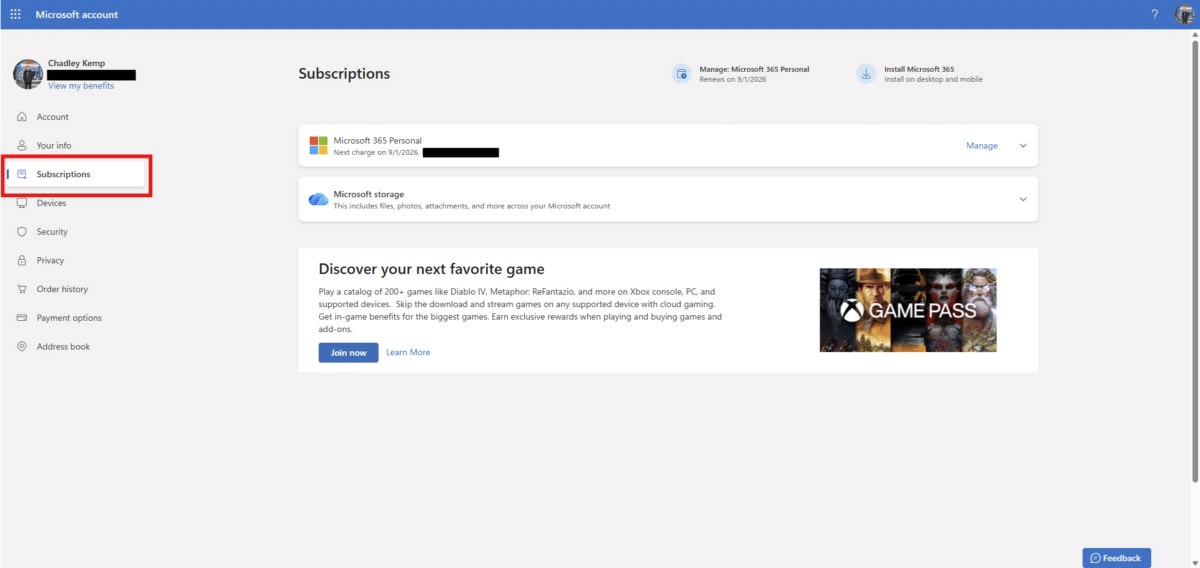
GTA+ subscriptions on Xbox are managed through the Microsoft account linked to the purchase.
Choose the option to cancel the subscription or turn off recurring billing.
If there’s an option to turn on recurring billing, it means that your GTA+ subscription is already set to expire, and you shouldn’t be charged again. Your existing membership benefits will remain available until the subscription reaches its expiry date.
Image credit: Chadley Kemp for Games Hub
How to cancel GTA+ on PC
GTA+ is also available for GTA V Enhanced on PC, although the exact cancellation process depends on where you purchased your subscription. Let me explain.
Rockstar Games Launcher
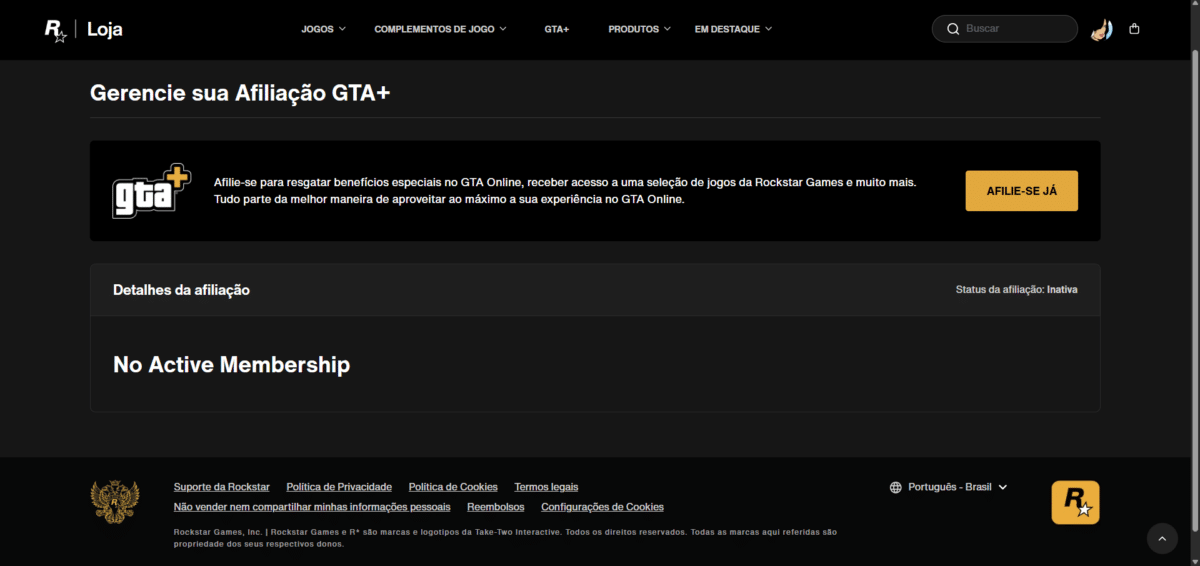
If you signed up through Rockstar Games, open the Rockstar Games Launcher, go to the GTA+ section, and select Manage GTA+.
You can also manage your membership directly via your Rockstar Games account. Once recurring billing has been canceled, GTA+ will remain active until your current subscription period expires.
Image credit: Chadley Kemp for Games Hub
Epic Games
If you subscribed to GTA+ through Epic Games, you can cancel it through Rockstar’s GTA+ management page.
Sign in to the Rockstar Games account linked to your copy of GTA V and open the GTA+ management page to check and cancel your active subscription. If the subscription does not appear there, check the subscription and payment settings associated with the storefront used for the original purchase.
Steam
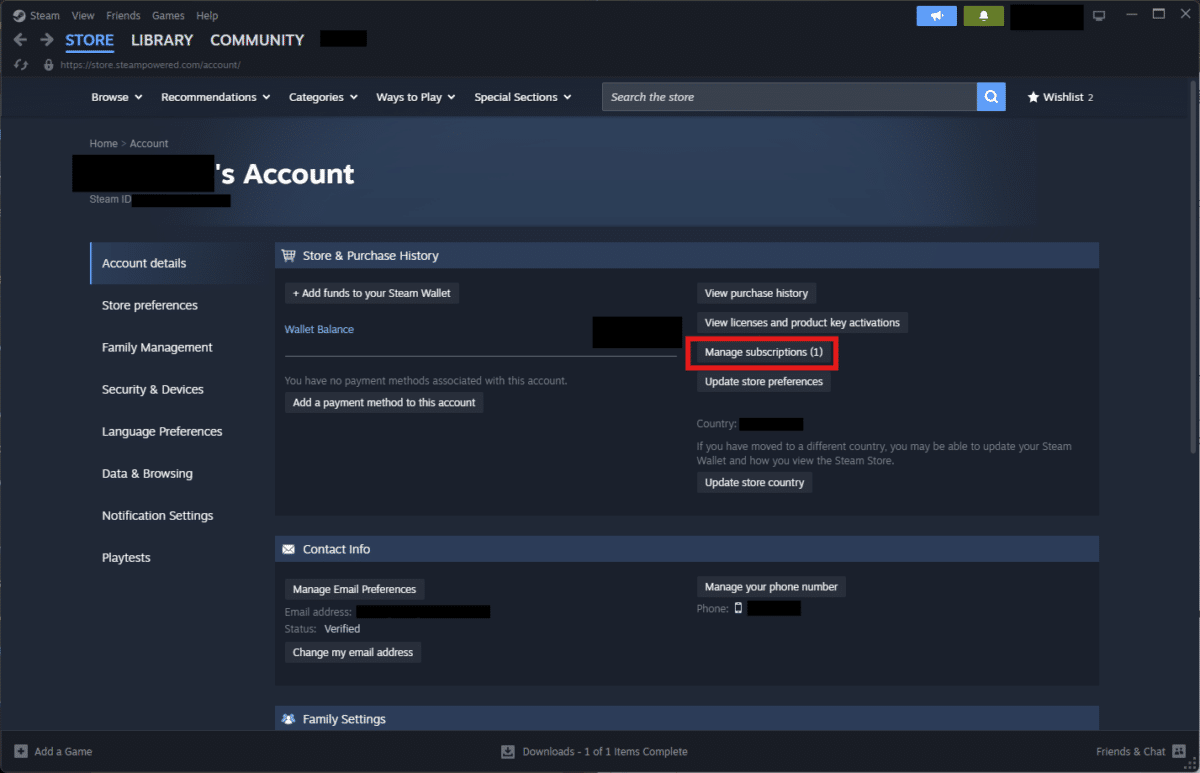
If you purchased GTA+ through Steam, you’ll need to cancel your subscription via your Steam Account Details subscriptions section.
Open your Steam Settings.
Go to Account.
Select Account Details.
Click on Manage subscriptions under the Store & Purchase History section.
Find GTA+ and cancel the subscription.
The membership will remain active until the end of the period you’ve already paid for.
Image credit: Chadley Kemp for Games Hub
Xbox App for PC
If you purchased GTA+ via the Xbox App or Microsoft Store on PC, cancellation works similarly to the Xbox console version.
Sign in to your Microsoft account.
Open Services & subscriptions.
Find GTA+ in the list.
Select Manage.
Choose the option to cancel the subscription or turn off recurring billing.
What happens when you cancel GTA+?
When you cancel GTA+, it normally does not remove your benefits immediately.
Instead, your subscription will remain active until the end of your current billing period. This basically means you can continue using all the GTA+ benefits available to you during that time, including any eligible bonuses, discounts, and other membership perks.
Once the subscription expires, you will stop receiving benefits that require an active GTA+ membership. This is why you should claim any GTA+ rewards you want before your membership expires.
Do you lose your cars after canceling GTA+?
No. Any vehicles you already claimed through GTA+ remain yours, even after the subscription ends.
The same rule generally applies to other permanent rewards you’ve already collected, including any GTA$ already deposited into your Maze Bank account, eligible properties, clothing, and cosmetic items.
When you cancel GTA+, it also does not remove a free monthly vehicle from your garage simply because you are no longer subscribed. However, you will lose access to benefits that specifically require an active GTA+ membership.
Image credit: Rockstar Games
Do you lose GTA+ Games Library games after canceling?
Yes. Since you need an active GTA+ subscription to access the GTA+ Games Library, you’ll lose access to any titles you were playing once your membership expires.
You can continue playing if you purchased the game separately, or regain access by resubscribing if the title is still available in the GTA+ Games Library. Remember, the GTA+ Games Library is a different offer from permanent GTA Online rewards, such as a vehicle you’ve already claimed — these remain attached to your character after cancellation.
GTA+ FAQs
Can you get a refund for GTA+?
Possibly. Refunds for GTA+ aren’t guaranteed. It depends on where you bought it (Rockstar, PlayStation, Xbox, or Steam), your region, and their refund rules. Canceling usually just stops future payments, not any past charges.
Can you resubscribe to GTA+?
Yes. You can resubscribe to GTA+ after your membership ends, although Rockstar notes there may be a brief delay before you can sign up again. Even so, you’ll only get access to current rewards, not past ones you missed while unsubscribed.
Does uninstalling GTA 5 cancel GTA+?
No. Uninstalling GTA V or GTA Online does not automatically cancel GTA+. You must cancel it manually through your platform’s subscription settings.
Does a GTA Online ban cancel GTA+?
No. A GTA Online ban does not automatically cancel GTA+. You still need to cancel the subscription manually to stop payments.
Authored by
Chadley Kemp
Chadley Kemp (preferably just "Chad") has nearly a decade of editorial experience spanning esports, gaming, crypto, and betting content, covering everything from Counter-Strike and VALORANT to League of Legends and Dota 2. Outside of esports, Chadley holds a Ph.D. in Physiology and has published research in several peer-reviewed scientific journals.
PUBG Mobile is getting decidedly more supernatural with the launch of its Version 4.6 update, introducing vampires, monster hunting, new collaborations, and the return of Ocean Odyssey. Available from 8…